
Product
How AI interview tools actually work
Screen capture, system audio, and overlay windows — a technical look at what these tools do and what they cannot do.
The HIDEA AI team
Updated 5 min read
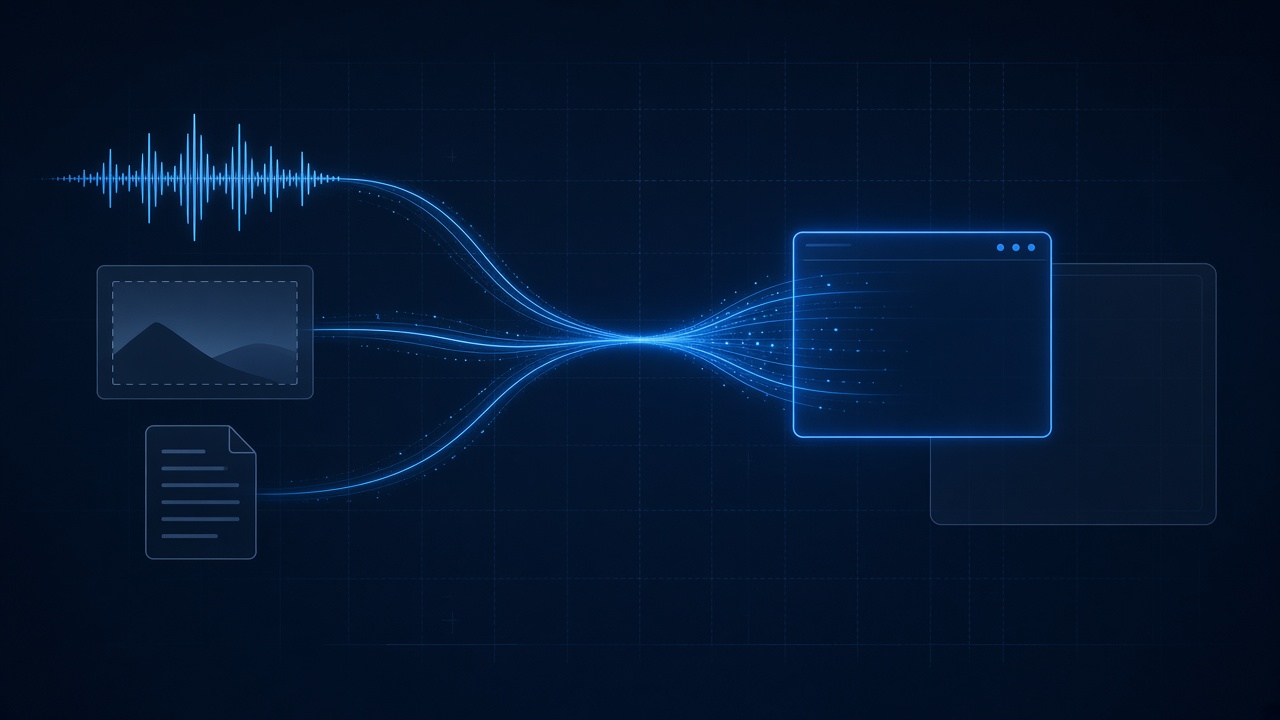
AI interview tools work in three steps. They capture the interviewer's audio from your computer and turn it into a transcript, optionally capture a region of your screen, and send both with your resume and job description to a language model. The answer appears in an overlay window that the operating system leaves out of screen sharing.
Three inputs
System audio
The interviewer's voice arrives at your machine as audio output. Capturing it is a platform-specific job: macOS exposes it through ScreenCaptureKit, and Windows through output loopback. That audio goes to a speech-to-text model to produce the rolling transcript.
This is why capture does not depend on which meeting app is open. The tool is not reading the meeting app — it is reading the sound card.
Those three are meeting apps. A round on an employer assessment platform is a different product, and that product publishes its own description of the sitting. Ropes assessments and Feenyx interviews quote those pages.
Screen capture
When you snip a region, the app takes a screenshot of that rectangle and either sends the image to a vision model or runs OCR locally to pull the text out. There is no continuous recording; capture happens when you press the key.
Your context
Resume, job description, role. This is the difference between an answer that cites your actual work and one that could belong to anybody.
The overlay window
The part people ask about most is how the window stays out of a screen share.
Operating systems provide a content-protection flag — set it on a window and the compositor excludes that window from capture APIs. It was built for DRM and for password managers, but it applies to any window that asks.
So the exclusion is done by the OS, not by tricking the meeting app. That is why it behaves consistently across platforms, and it is also why the boundaries are what they are.
What this means for the limits
- The window is excluded from screen capture. You see it on your display; the shared stream shows the call. You still speak or type every answer.
- Tab-level sharing captures a page's own render surface, which is a different path from a desktop capture. That is why every honest guide tells you to share a window instead.
- The overlay is skipped when you share, because the operating system skips that window. You still speak or type every answer. That is not a guarantee against software that looks for a process by name.
What does the language model actually receive?
Three things: the text of the conversation so far, any text taken from a screen region you captured, and the context you provided, such as your resume, the job description and the role. The model returns a draft that you read and put into your own words. It does not hear the call itself, and it does not see your whole screen unless you capture it.
Where do these tools fall short?
- Transcription can mishear names, accents and technical terms, so a wrong answer sometimes starts from a wrong transcript.
- Latency adds up across capture, transcription, the model and rendering, so a long answer can arrive after the moment passed.
- A model draft does not know your real experience unless you supply it, so generic context gives generic answers.
- Capture depends on how you share. Window and desktop shares behave differently from tab-level shares.
Why latency is the real engineering problem
None of the above is especially hard. The hard part is the clock.
In a live interview, a three-second pause is visible. That budget has to cover audio capture, transcription, a round trip to a language model, and rendering — and the model is most of it. This is why per-surface model selection matters more than it sounds: you want a reasoning model for system design, where you are meant to be thinking anyway, and a fast one for behavioral, where the silence is the problem.
Where to go next
- See the full feature set on the interview copilot page.
- Read how data is handled on the security page.
- Walk through install and permissions with the setup guide.
- Compare tools on their own published facts in interview copilots, compared without a ranking, and read the rules side in Where we stand on AI in interviews.
Frequently asked questions
How do AI interview copilots work?
They capture system audio from your computer and transcribe it, optionally capture a screen region, then send the transcript, the capture and your context to a language model. The answer is shown in an overlay window. You read it and say or type the answer yourself.
How does an interview copilot hear the interviewer?
By capturing your computer's audio output, not by connecting to the meeting app. On macOS that uses ScreenCaptureKit, and on Windows it uses output loopback. The audio then goes to a speech-to-text model that produces the rolling transcript.
Why doesn't the overlay show in screen share?
Operating systems provide a content-protection flag for windows. Setting it makes the compositor leave the window out of capture APIs. It was built for DRM and password managers. The result depends on how you share, so check the share preview before a real call.
Can an AI interview tool be detected?
No tool can promise otherwise. The screen-share exclusion is handled by the operating system, but it is not a guarantee against dedicated proctoring software or tools that look for processes by name. Follow the rules of your interview and check what the employer allows.
What is the hardest part of building an interview copilot?
Latency. A three-second pause is noticeable in a live conversation, and the budget has to cover audio capture, transcription, the model round trip and rendering. The model takes most of it, which is why choosing a model per interview type matters.