Ethics
Screen-Share Privacy in Interviews: What Our Overlay Does (and Doesn't)
Share a window, confirm the overlay is absent from the feed, and keep speaking or typing the answer yourself.
The HIDEA AI team
Updated 8 min read
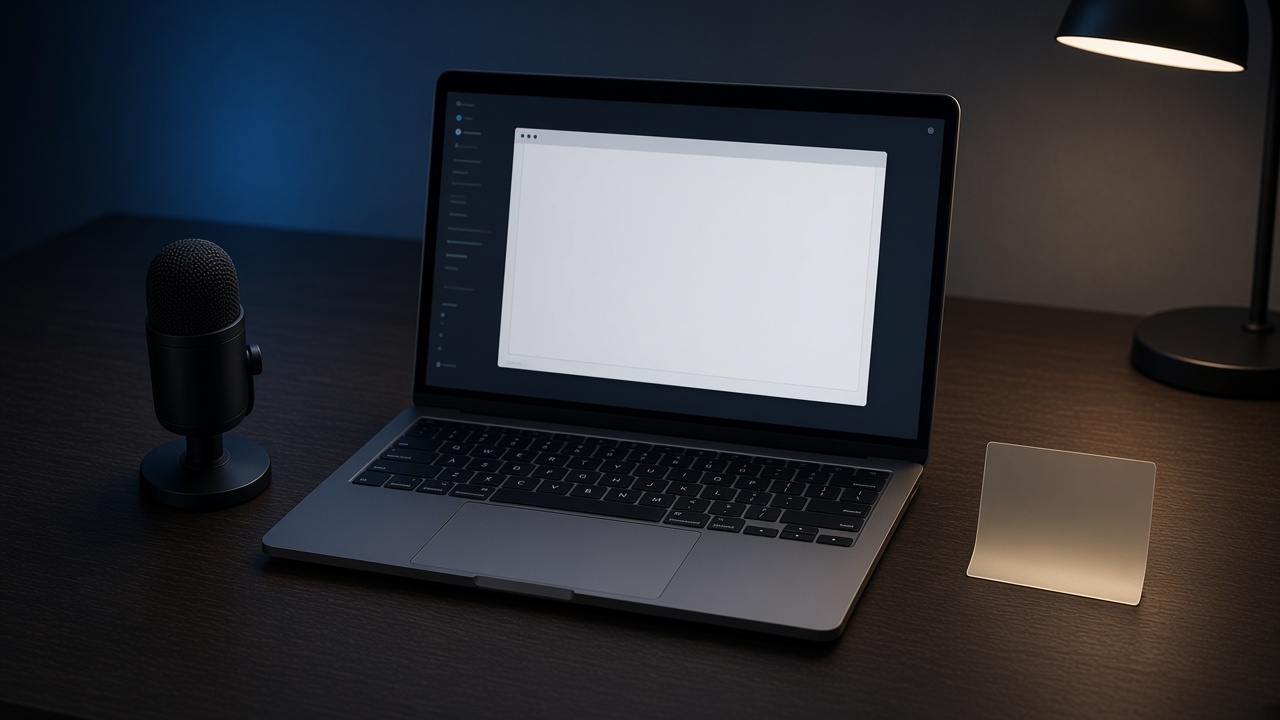
In a screen share, HIDEA AI's overlay is marked as protected content, so screen-share capture skips it: you see it on your display and the interviewer does not see it in the shared feed. Check the share preview before every interview. A clean preview is not a guarantee against dedicated proctoring software, a second camera, or someone looking at your display.
The overlay stays out of your screen share when you need it live, including on an assessment. A clean preview is not a guarantee against dedicated proctoring software. A second camera, or a person looking at your display, is outside this mechanism. The security page states that boundary in one place: https://hidea.ai/security.
The product explanation, including how the window is marked and how to verify it in each meeting app, is the screen-share privacy guide. This page is the short version you can run before a call. It is a how-to, not a second copy of that guide.
What the overlay does on a share
The overlay window is marked as protected content. Screen-share APIs skip that window. The operating system does the excluding. Nothing is intercepted, and nothing is swapped into the feed in its place.
You see captions and notes on your display. The shared frame does not contain them. That is the whole claim. It holds when the meeting app asks the operating system for a filtered capture, which is what Zoom, Google Meet, and Microsoft Teams normally do when you share a window or the whole screen.
It does not hold for every capture path. Sharing a browser tab uses the page's own surface, which is a different path. Dedicated proctoring software is a different product. Read the limit before you treat one clean preview as a guarantee for every tool in the room.
What it does not do
The useful version of this feature is the boundary, said in the same words you can check.
- A clean share preview is not a guarantee against dedicated proctoring software.
- It does not cover a second camera, or someone who can look at the display you are using.
- It does not change what an employer publishes. That note is what employers publish about AI. HIDEA AI still helps in the live session and in mock practice.
- It does not answer for you. You speak or type every answer they hear.
Does it work on Zoom, Google Meet and Microsoft Teams?
Those apps normally ask the operating system for a filtered capture when you share a window or the whole screen, and a filtered capture is what lets the protected window be skipped. Behavior still varies by app version, capture mode and machine, so the only answer that counts is the preview in the app you will use, on the machine you will use.
- Zoom has a screen capture mode setting. Set it to window filtering, as in the tip below, rather than leaving it on Auto.
- Browser-tab sharing uses a different capture path. Share a window or the whole screen instead.
- A different meeting app, or a different laptop, needs its own thirty-second check.
Three checks before the call
Do this once per meeting app, in a call with yourself. It takes about thirty seconds, and it replaces a guess you would otherwise carry into the round.
- Pick the window to share. Share a specific window, or your whole screen, the same way you will in the interview. When you have the choice, do not share a browser tab. Tab sharing captures the page's own surface, which behaves differently from a desktop capture. The docs page says why: the screen-share privacy guide.
- Verify the overlay is not in the feed. Start the meeting app with no other participants. Start a HIDEA AI session so the overlay is actually on your display, not only the hub. Share. Look at the share preview the meeting app shows you. The overlay should be absent from that preview. Record a few seconds and play them back if you want a second look.
- Keep speaking or typing the answer yourself. The check is about the feed. The round is still your words. If you are reading a paragraph aloud, you have left the point of the tool. Say or type the answer in your own words.
What you are looking at in the preview
The preview is the feed. If the overlay is on your display and absent from the preview, the share is doing what the protected-content flag is for. If the overlay appears in the preview, stop. Do not start the interview and hope the next frame will be different.
Change the share target to a window or the whole screen, set the meeting app's capture mode if it offers one, and look again. A preview from last month is not today's check. Meeting apps change those modes. Do the check in the app you will actually use, on the machine you will actually use.
You are confirming an absence. The overlay should be missing from the thumbnail, the recording, or both. You are not looking for a blur, a logo, or a special border. Absent means absent.
Misses that put the overlay in the feed
When the preview shows the overlay, the cause is usually the share target or the capture mode. The preview is already telling you which one. Fix that, then look again. Do not start the round on a feed you have not rechecked.
- A browser tab. Tab capture takes the page's own surface. The protected-content flag on the desktop window is not what that path asks for. Share the window or the whole screen instead.
- Zoom left on Auto, or on the mode without window filtering. Set Capture with window filtering, share again, and look at the preview before you trust it.
- A check with no session open. The overlay has to be on the display. If you only opened the hub, there is nothing for the share to skip, and the check does not count.
- A different machine, or a different meeting app, than the interview will use. Run the thirty seconds on that pair. A pass on your other laptop is not this call.
If you fix the target and the overlay is still in the preview, stop. Use the docs page rather than inventing a workaround for a feed you can already see is wrong: the screen-share privacy guide.
Pair the check with the rule
The share check and the live session go together. Confirm the overlay is absent from the feed, then keep it open. HIDEA AI helps in that live session and in mock practice. You still speak or type every answer.
The reason to use one app for both, so the surface you practice is the surface you open live, is mock versus live. If the round is spoken, the practice loop is verbal interview practice.
Check the feed, then answer
Run the three checks once in the meeting app you will use. Pick the window to share. Confirm the overlay is absent from the preview. Keep speaking or typing the answer yourself. The full product explanation is https://hidea.ai/docs/screen-share-privacy, and the boundary is also on https://hidea.ai/security. HIDEA AI is the desktop app for that overlay, on macOS and Windows. Download it at https://hidea.ai/download.
Where to go next
For the full product explanation, see the screen-share privacy guide, the security page and the interview copilot overview. To decide whether any tool belongs in a given round, read what employers publish about AI in interviews and where we stand on AI in interviews. To set the app up, use the setup guide.
Frequently asked questions
Will the interviewer see the HIDEA AI overlay on a screen share?
When you share a window or the whole screen and the meeting app uses a filtered capture, the overlay is skipped, so the shared feed does not contain it while it stays on your display. Confirm that in the share preview before you rely on it. This is not a guarantee against dedicated proctoring software, a second camera, or a person who can see your display.
How do I check that the overlay is hidden from the share?
Start the meeting app alone, start a HIDEA AI session so the overlay is on your display, and share the same window or screen you will share in the interview. Look at the preview the meeting app shows. The overlay should be absent. Do this once per meeting app and machine, in a call with yourself.
Does this get around proctoring software?
We do not guarantee that. The overlay is skipped because the operating system excludes the protected window from screen-share capture. Dedicated proctoring software, a second camera, or a person watching your display is outside that mechanism. You also still speak or type every answer yourself. The security page states the same limit.
What if the overlay shows in the share preview?
Stop and do not continue into the interview on that share. Share a window or the whole screen instead of a browser tab, set the meeting app's capture mode if it has one (for Zoom, window filtering), and look at the preview again. If it still appears, use the screen-share privacy guide rather than a workaround.
Does a clean preview mean AI is allowed in my interview?
No. The preview only tells you what the shared feed contains. Whether any tool is allowed in a live round is the employer's rule, which you should read or ask about in writing before the call. You also still speak or type every answer yourself in a live session.